What is a Chrome extension?
A Chrome extension is a small helpful feature you add to Google Chrome. Think of it like adding an app to your phone, but for your browser.

You saved it, but still cannot find the exact place you wanted to revisit.
A Chrome extension that lets you save important spots on web pages and videos, then revisit them with notes, highlights, and automatic scrolling.
You can also use it with GPT, Gemini, YouTube, and more.
View an overview of My View Point, the intro video, and a guide to this page.
View an overview of My View Point, the intro video, and a guide to this page.
02What is a Chrome extension?For users new to Chrome extensions: learn how they work, what to check before adding one, how to install it, and how to disable or remove it.
03Plans & FeaturesCompare Free, Standard, and Pro, including the introductory price, planned development, and important notes.
04How to UseView the tutorial, image-based usage guide, and pages where the extension cannot be used.
05FAQCheck details about the trial, pricing, cancellation, saved data, safety, and troubleshooting.
06Development StoryRead why My View Point was created, how it was developed with AI, and where it is headed.
07NewsView the latest announcements, update details, and past release history.
08Support & ContactFind contact, bug report, feedback/request, and review pages.
For users new to Chrome extensions: learn how they work, what to check before adding one, how to install, and how to disable or remove it.
For users new to Chrome extensions, this section explains what a Chrome extension is and how it differs from a regular app.
A Chrome extension is a small helpful feature you add to Google Chrome. Think of it like adding an app to your phone, but for your browser.
It is not an app that launches separately. You use it while viewing web pages in Chrome. My View Point is also an extension used on AI pages and other web pages.
On the Chrome Web Store, you can check the provider, update date, handled data, privacy information, and more before adding an extension.
In the Details and Privacy sections near the bottom of the store page, you can check the provider, update date, handled data, privacy policy, and more. Also review the permissions shown when adding the extension before proceeding.
Select a step to switch the screen image below. The images are close to the actual screen layout, with only the areas to check emphasized.
If you no longer need it, you can remove it from Chrome's extension management page. If you only want to stop using it temporarily, you can turn it off.
Use the puzzle-piece icon in the upper right to open the extensions management page.
On the management page, you can remove the extension with the Remove button or switch it on/off with the toggle button.
Check feature differences by plan, the introductory price, and features planned for future development.
Review Free, Standard, and Pro in card format. Press "Show details" in a card to compare feature differences in the same item order across plans.
$0
A free plan for saving only the pages you occasionally want to revisit.
$1.99/month
A plan for users who often save places to revisit while studying, researching, or working on the web.
TBD
A planned plan under consideration for broader uses such as sync and category management.
Check the Standard plan's introductory price, how it works during continued use, and notes for when the introductory price ends or you resubscribe.
It is a special price for users who subscribe to the Standard plan during the initial release period.
It is currently $1.99 per month, lower than the regular price.
Users on the introductory price will see a badge in the popup.
The introductory price is not a temporary discount for only a few months.
As long as you subscribe at the introductory price and continue without canceling, you can keep using that price.
The introductory price may end without prior notice.
If you cancel while the introductory price is still available and then resubscribe, you can subscribe again at the introductory price.
If you newly subscribe or resubscribe after the introductory price has ended, the regular price will apply.
If a Pro plan is offered, Pro pricing for early users will be announced separately.
The Standard plan's introductory price does not automatically apply to the Pro plan.
These are features currently being considered for future addition. They are not necessarily exclusive to Pro and may also be offered to Free or Standard with limitations.
These are not currently available features, but items under consideration for future addition. Timing, eligible plans, limits, and content may be reviewed based on development status and usage. Any changes will be announced on this page or through notices in the extension.
Check additional information about pricing, specifications, saved data, and plans.
Prices are tax-inclusive. Prices may be reviewed due to tax rate changes or similar reasons, but any change will be announced in advance on this page or through notices in the extension. Your current monthly subscription price will not be changed without prior notice.
My View Point can be used on many common websites, but some pages may be difficult to use depending on the site's specifications or display method.
Plan structure, save limits, features available in each plan, and future development plans may be reviewed based on usage, operational circumstances, technical constraints, or similar reasons. Any changes will be announced on this page or through notices in the extension.
Saved and displayed positions may be affected by changes to the target page or service specifications.
Headings, notes, settings, and related data are saved in the user's browser. For details about data storage and transmission, please see the Privacy Policy at the bottom of this page.
In the tutorial, you can actually try the basic flow from saving to revisiting. The image-based guide lets you review how each feature works later.
You can learn the basic operations of My View Point by using it directly on an actual page. It starts automatically after first installation, and you can also start it from this page at any time.
Try saving text, editing notes, changing colors, and moving back to a saved spot.
Use a YouTube video to learn how to save a playback position and return to it.
Use an image in the development story to try saving an image View Point and opening its export screen.
Select an item from the menu on the left to switch the explanation and image.
Select text and right-click to easily save highlights and notes.
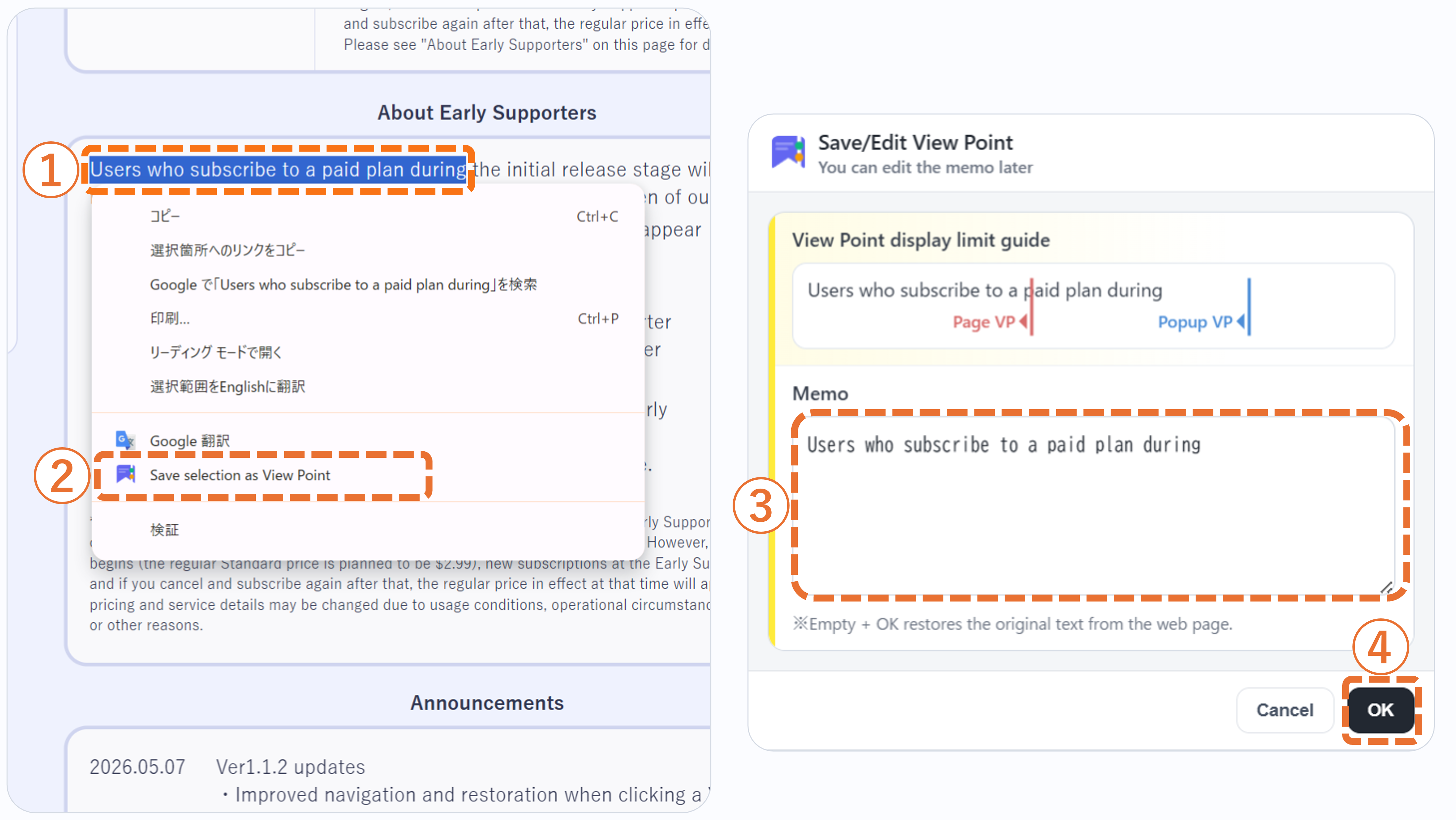
①Select the part you want to save or revisit later, then right-click.
②From the menu that appears, choose "Save selected text as a View Point."
③Enter a note if needed on the save/edit screen, then press "OK."
•The selected text is automatically inserted into the note field.
•You can edit notes freely later.
•If you leave the note field blank and press "OK," the original selected text is saved.
After saving, highlights and View Points appear. You can move to a saved spot from the right side of the page or the popup.
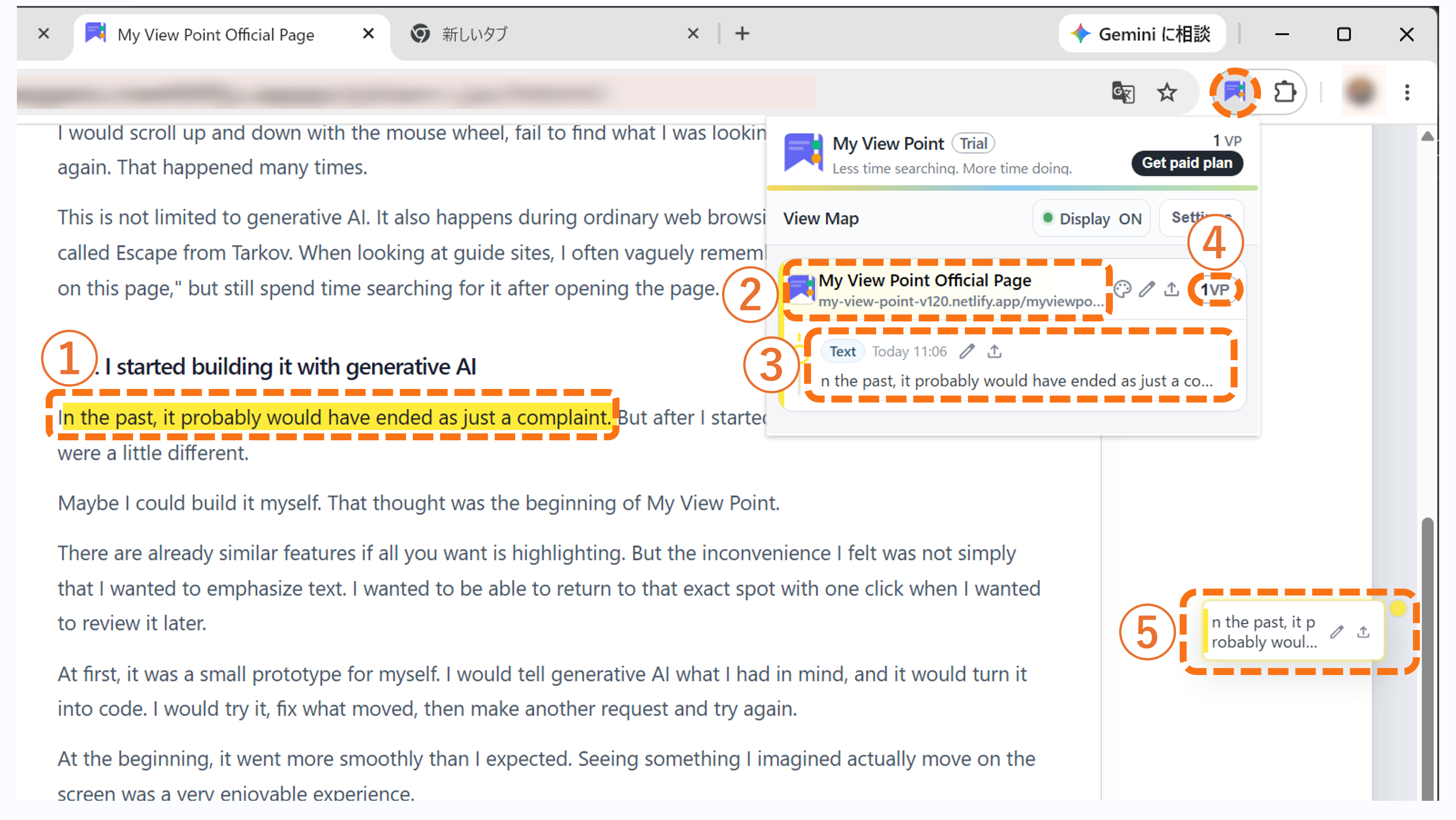
①The saved part is highlighted.
②Click the page name in the popup to open that page.
③Click a View Point in the popup to move to the saved spot.
④Click the View Point count to expand or collapse the View Point list below.
⑤A View Point and marker appear on the right side of the page. Click the View Point to move to the saved spot.
•You can show or hide the View Points on the right side of the page using the display ON/OFF setting in the popup.
•You can also switch the display with a shortcut key. See "09 Useful tip - Shortcut settings" for how to set it up.
•If the target page is already open in another tab, that tab will be activated.
•If the target page is not open, it will open in a new tab.
From the popup, you can edit View Point notes, export View Points, and change page names, icons, and display styles.
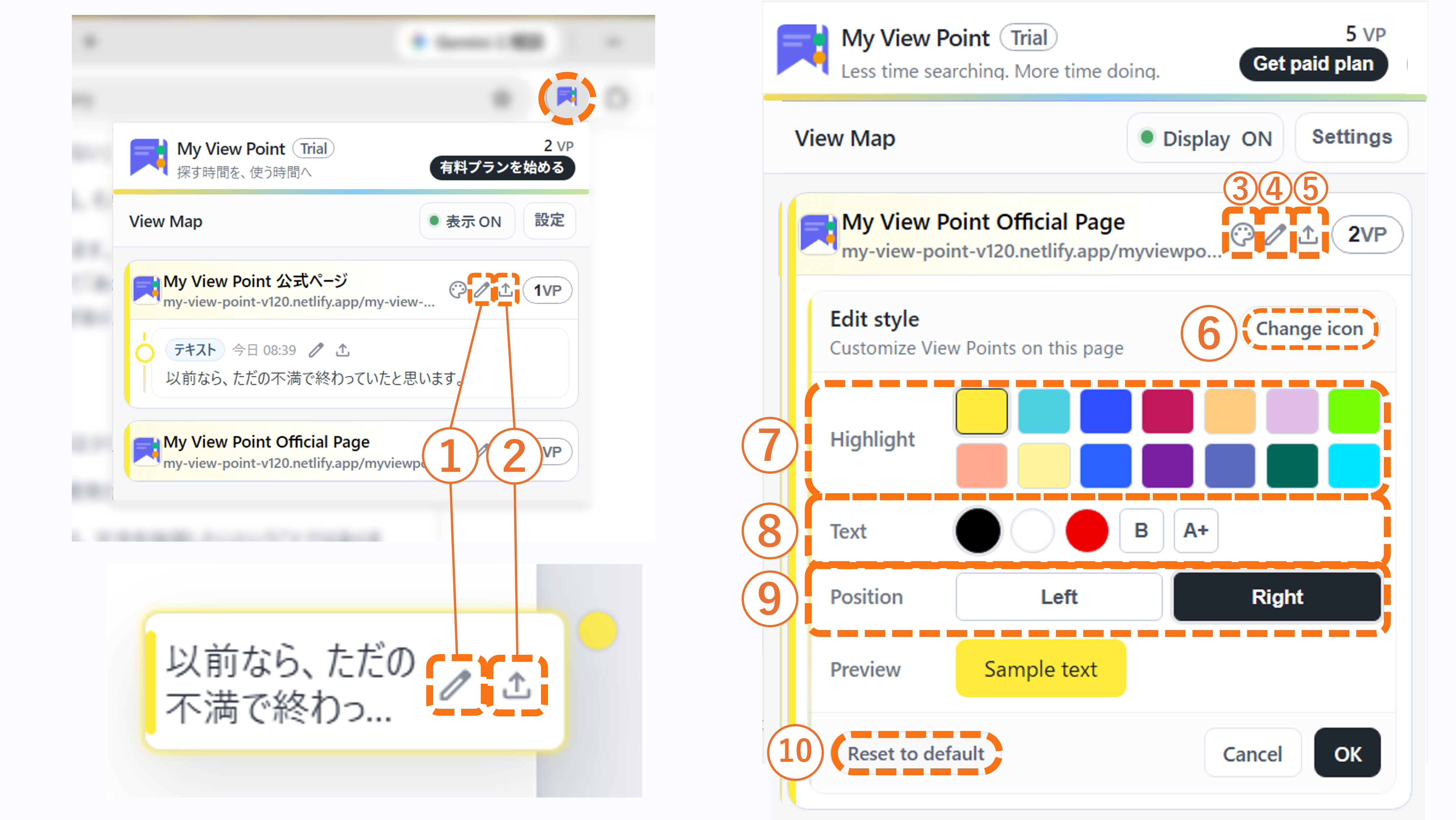
①Open the save/edit screen for a View Point and edit its note.
②Export an individual View Point.
③Use the palette button to change the display style of View Points on that page.
④Use the pencil button to edit the page name shown in the popup.
⑤Use the export button on the page row to export all View Points saved on that page together.
⑥Use the icon change button to replace the icon shown to the left of the page name with your own image.
⑦Change the highlight color. For YouTube View Points, this is reflected in the color of the label shown on the video.
⑧Text color, bold text, and font size can be changed. These changes are applied together to the highlights shown on the target site.
⑨Use "Position" to switch the View Points and markers on the page between the left and right sides. This item is not shown on YouTube.
⑩Use the reset to default button to return the changed style to its initial settings.
•Some changes are limited on the Free plan.
•Style changes are applied together to the highlights shown on the target site.
•For saved YouTube playback positions, there is no page highlight, so text color, bold text, and font size changes are not available.
•The page name is not affected by text color, bold, or font size changes. It stays fixed for readability.
The popup provides various settings and links to external pages.
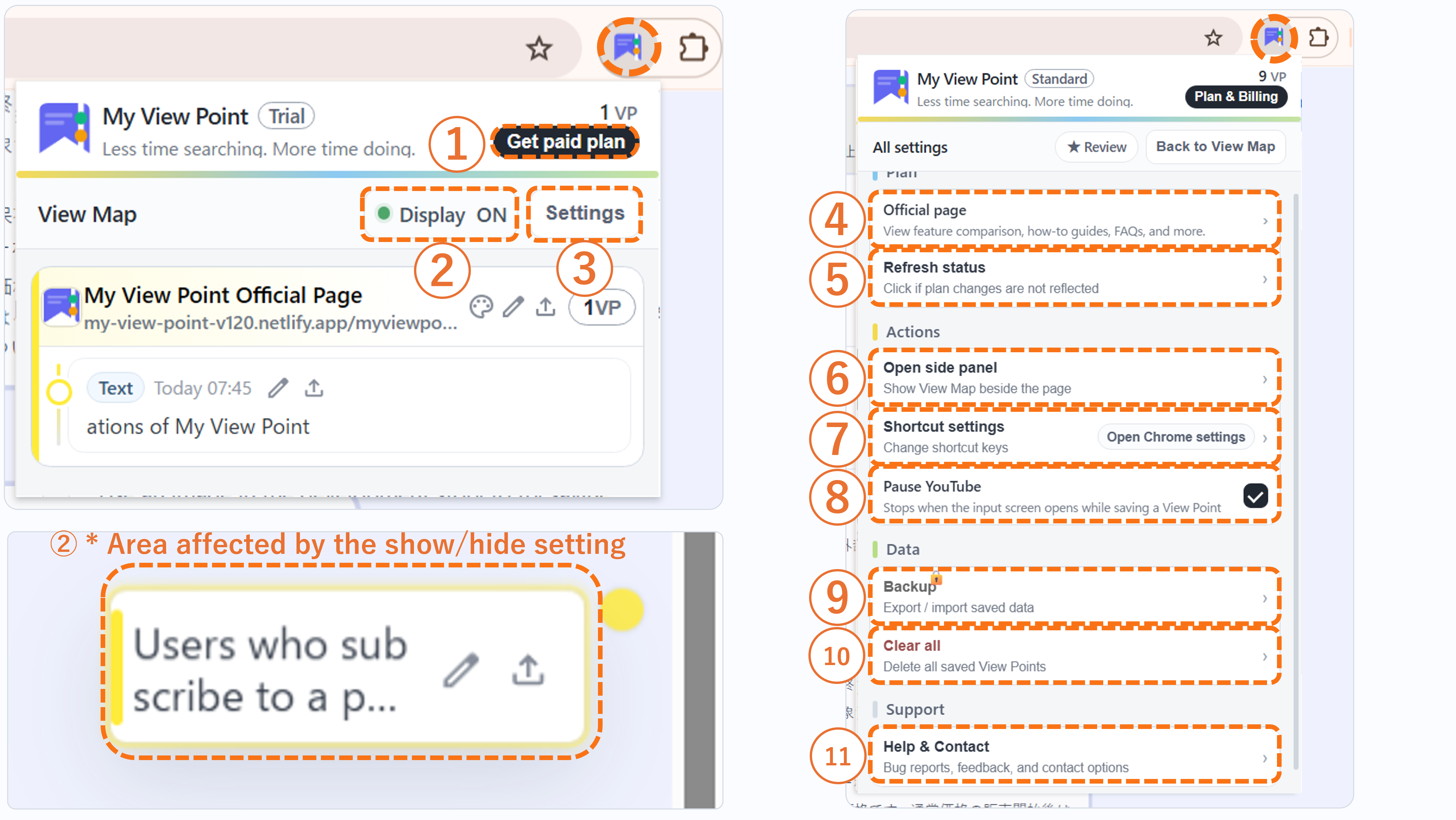
①Check plan and payment-related actions.
②Switch View Point display on or off.
③Open the settings screen.
④Open the official page. On the official page, you can check Plans & Features, How to Use, FAQ, News, and more.
⑤Update the status if the display does not reflect a plan change or payment.
⑥Open or close the side panel.
⑦Check and change shortcut settings.
⑧Choose whether to pause the video when saving a playback position on YouTube.
⑨The backup feature is currently in preparation.
⑩Delete all saved View Points and page information.
⑪Open Help & Contact. You can go to the contact, bug report, feedback/request, and review pages.
•"Delete all" removes saved View Points and page information. Please review the details before using it.
•Bug reports, feedback, and requests can be sent by purpose from the Support section of the official page. If you need an individual reply, please use "Contact" in 08-2.
•If the display does not change after payment or a plan change, try "Update status."
•In the Free plan, "Start paid plan" is shown. Clicking it opens the payment information screen. You are not charged just by clicking it.
Saved text and Image View Points can be exported one at a time or together by page. Select what to export, then copy or download it.
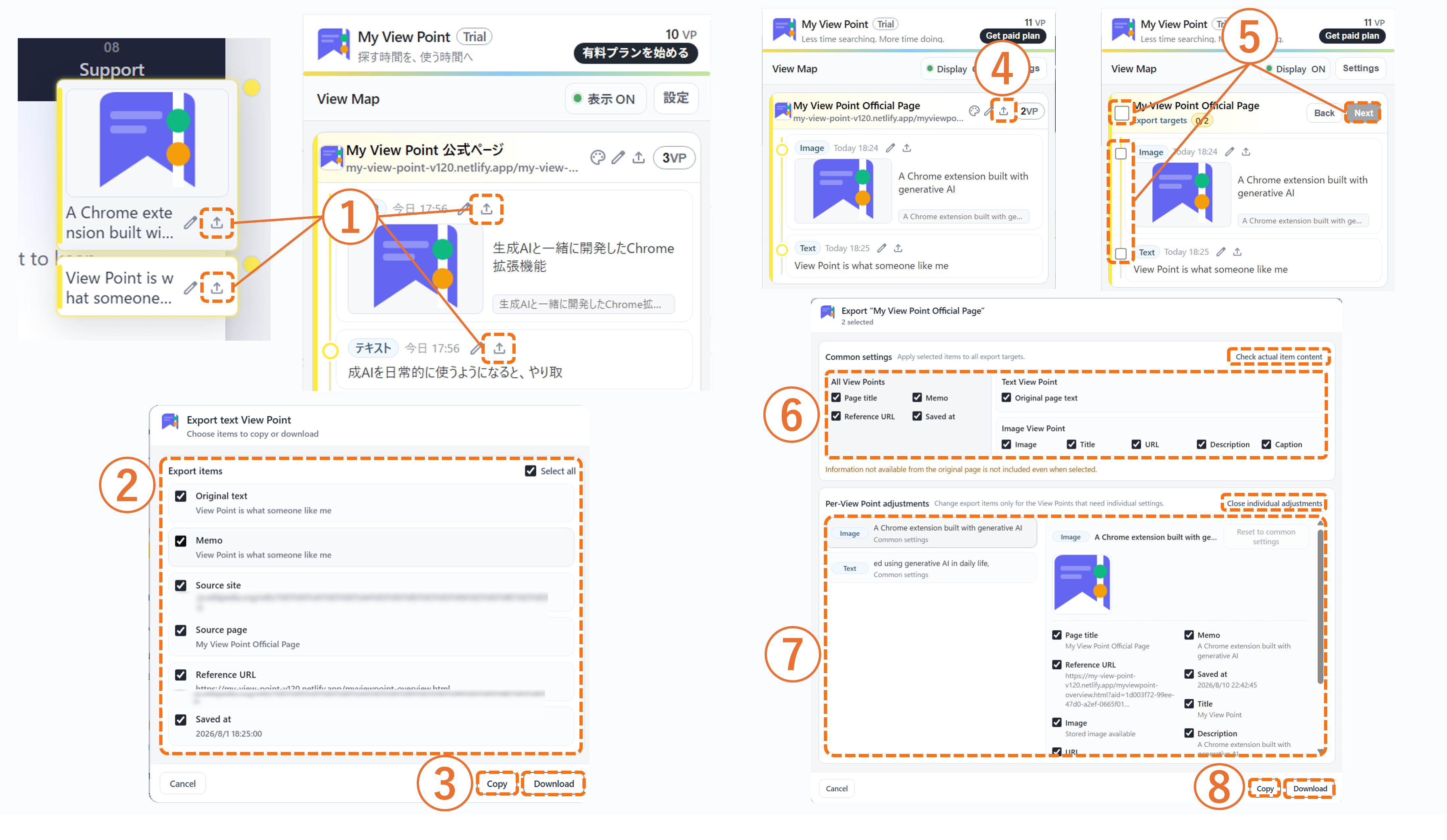
①Use a View Point's export button to export one View Point at a time.
②Select the items you need. Use "Select all" to select them together.
③Use "Copy" to copy to the clipboard, or "Download" to save as a file.
④Use the export button on the page row to start a multi/batch export.
⑤For all items, select the page checkbox. For selected items only, select each View Point, then click "Next."
⑥Items selected in Common settings apply to all matching View Points.
⑦Open "Adjust individually." Select a View Point on the left, then change its items on the right.
⑧Click "Copy" or "Download" to export.
•Individual export is available from the right side of the page, popup, and side panel. Multi/batch export is available from the popup and side panel.
•"Check actual item content" shows the content currently stored for each item.
•Per-View Point adjustments are collapsed at first. Open them only when needed, and use "Reset to common settings" to undo changes.
•Information not available from the original page is not exported even if selected.
•Image View Points saved on ChatGPT and Gemini do not include "Image URL" in the export fields because a usable image URL cannot be obtained.
•Text and Image View Points can be exported. YouTube playback positions are not supported.
•Depending on the selected content, downloads use TXT, PNG, or ZIP. Images are exported from the reduced and compressed version saved by My View Point. Follow the source site's terms of use.
In Gemini, past conversations may not all be loaded from the start. My View Point displays content according to the current loading state.
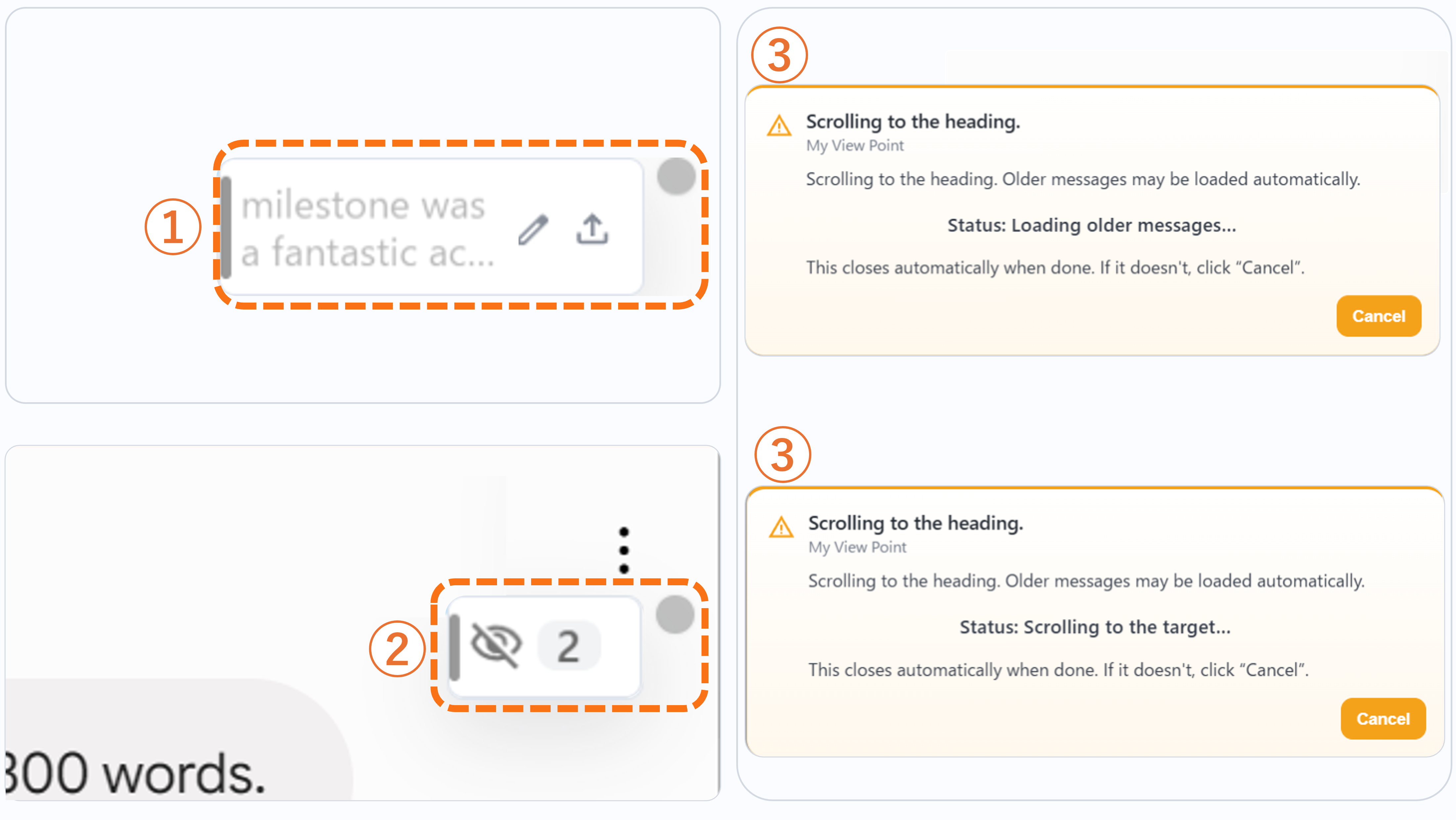
①View Points saved in areas that have not yet loaded are shown in gray.
②If multiple View Points cannot be displayed yet, they are grouped and shown as a count.
③Clicking a gray View Point shows guidance to load the relevant part and starts scrolling.
•If the guidance remains even after scrolling has stopped, press the "Stop" button.
•Depending on Gemini's loading state, displaying or moving to a View Point may take time.
On YouTube, you can save a video's playback position as a View Point. Saving text on YouTube is not currently supported.
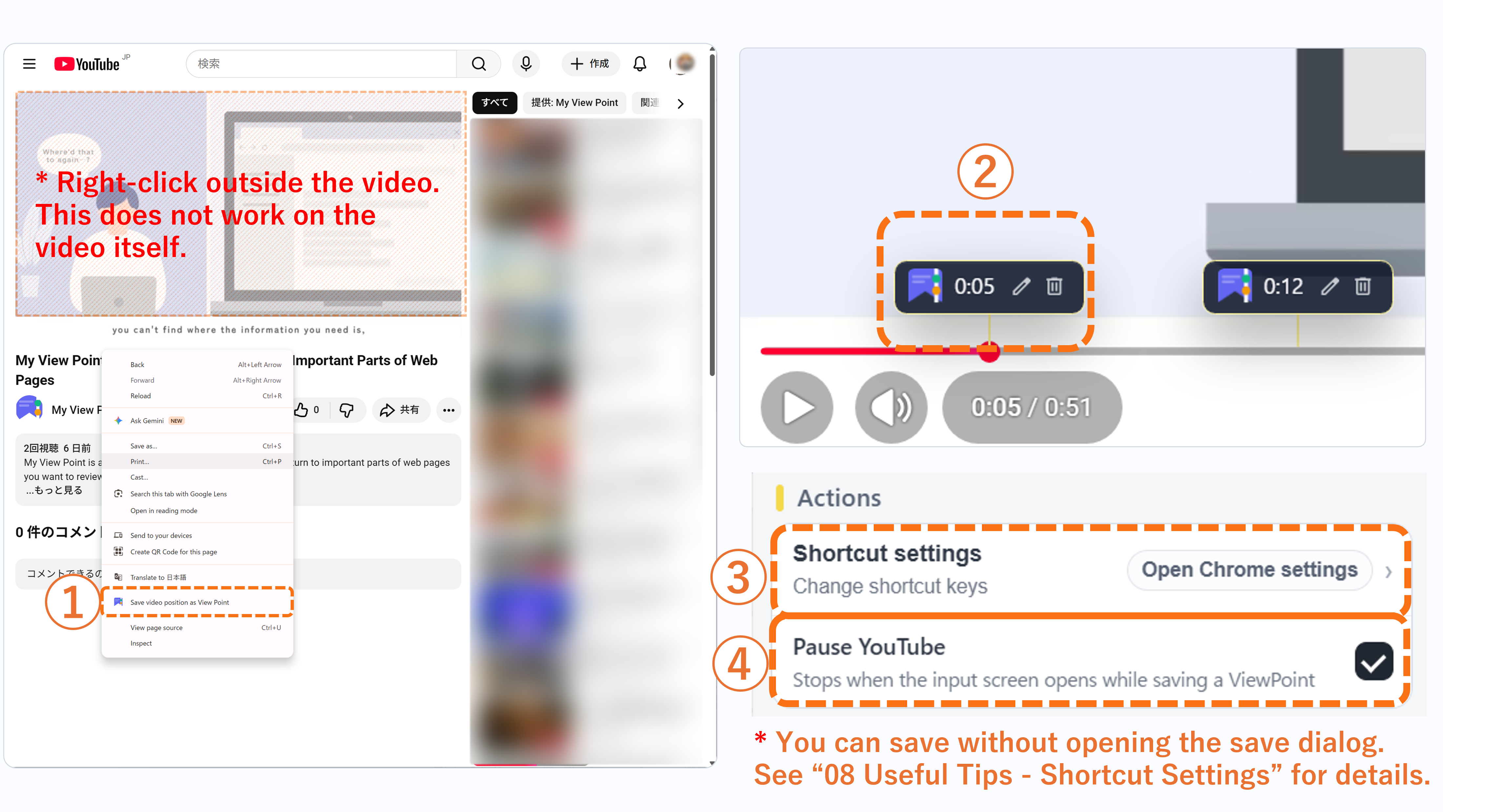
①Right-click on the page outside the video and select "Save video playback position as a View Point."
②Saved View Points appear on the seek bar and in the popup. Click one to jump to that playback position.
•While a YouTube ad is showing, My View Point may not be able to jump to a saved View Point position. After the ad ends, click the View Point again.
•If you right-click on the video itself, YouTube's standard menu appears and the My View Point save menu does not. To save, right-click on the page outside the video.
•With a shortcut set, you can save the playback position without opening the note save/edit screen.
•You can choose in the popup settings whether the video pauses when the note save/edit screen opens.
You can save images on web pages as Image View Points. Saved images and information can be copied or downloaded.
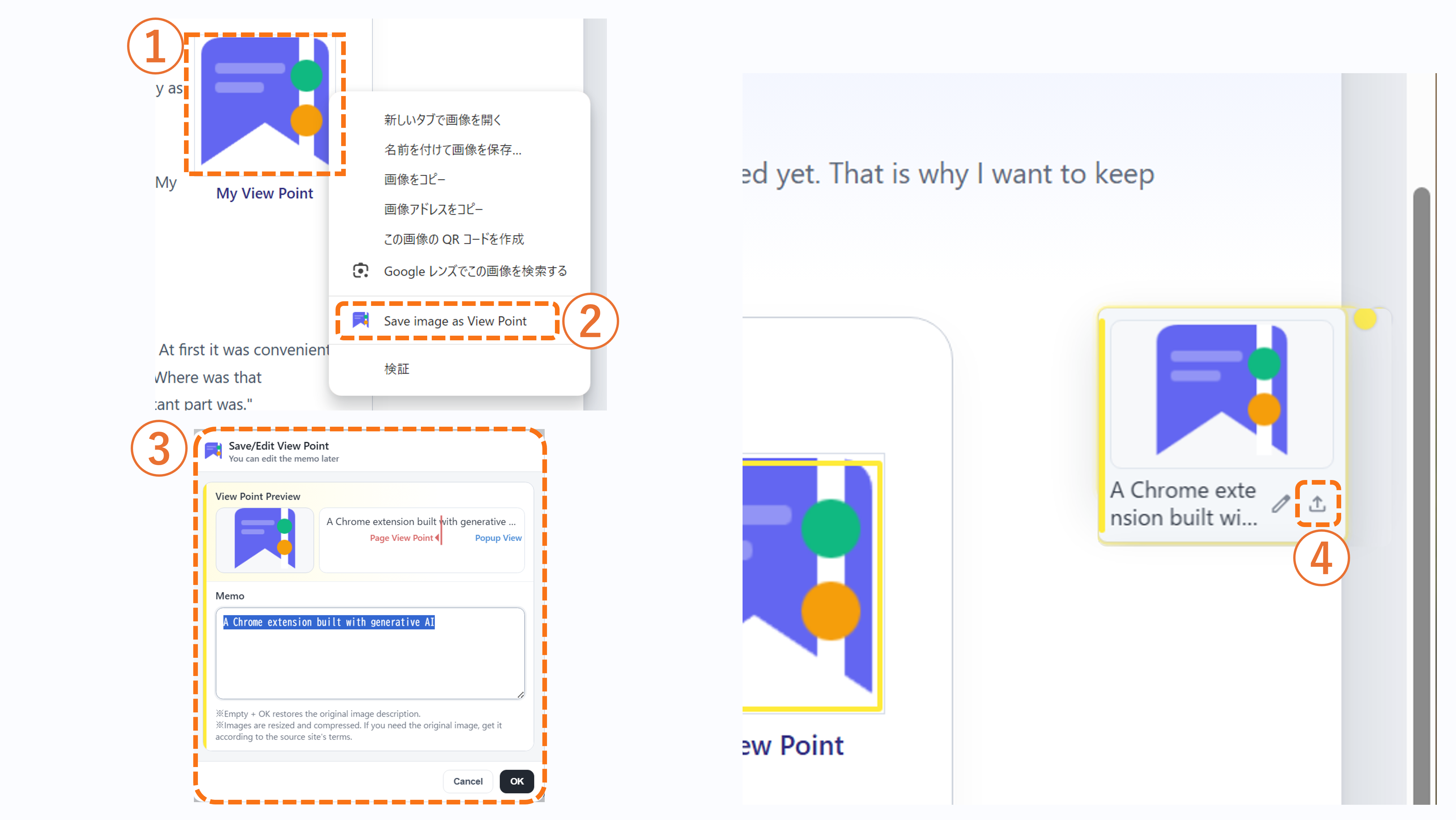
①Right-click the image you want to save.
②Select "Save image as View Point" from the menu.
③Enter or edit the note if needed, then click OK.
④On the right side of the page, move the pointer over an Image View Point and use the export button that appears to copy or download it. You can also export from the popup or side panel.
•Downloading the image and information creates a ZIP file. Image only creates a PNG file, and information only creates a TXT file.
•Copy places images or information on the clipboard.
By setting shortcuts, you can run My View Point actions with only the keyboard, similar to copying with Ctrl+C.
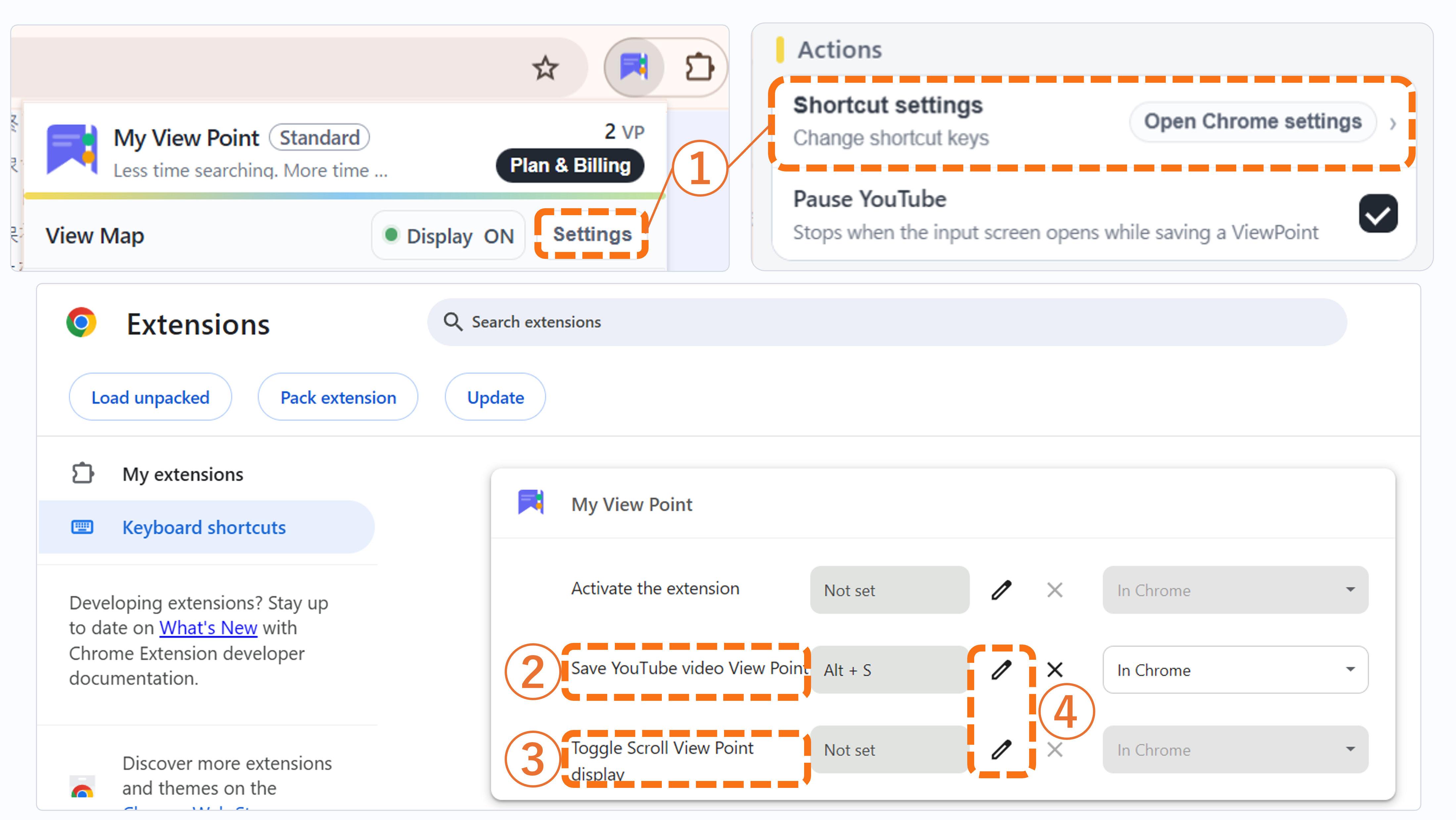
①Open "Shortcut settings" from the popup settings screen.
②"Save YouTube playback position" lets you save the current playback position as a View Point simply by pressing a key while watching a video. Alt+S is specified by default.
③If you click an unassigned item, a message appears telling you that no shortcut has been set.
④To change a shortcut, click the pencil icon for the target item and press the key combination you want to use. "View Point display ON/OFF" is specified as Ctrl+Shift+1 by default.
•If the default key is already in use, Chrome may show the shortcut as unassigned.
•If it is unassigned, click the pencil icon and set a key combination that is easy for you to use.
•If the same shortcut is used by another extension or website, it may not work properly. In that case, change it to a different key combination.
If you save inside an in-page tab or accordion, and the target content is not currently visible, the View Point may temporarily wait to be displayed.
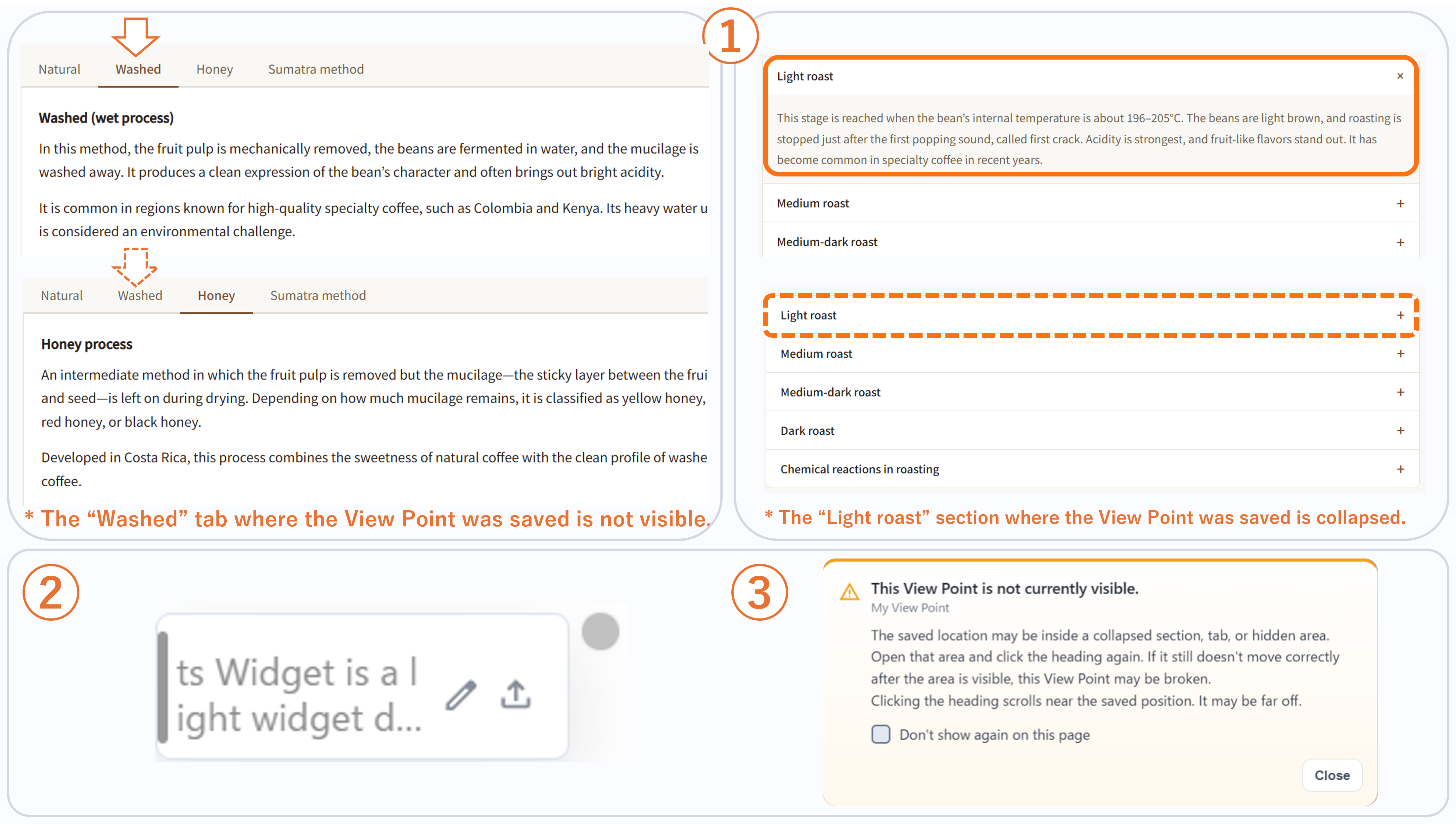
①Content inside in-page tabs or accordions may not be visible while it is closed.
②If the saved spot is not yet visible, the View Point is temporarily shown as "waiting to display."
③When you open the target tab or accordion and the saved spot becomes visible, the View Point returns to normal display.
•Waiting to display does not mean the saved data has been deleted. Once the target content appears on the screen, it is handled as a normal View Point.
•If the page structure changes significantly or the saved content itself is deleted, My View Point may not be able to return to the original position.
•If you cannot move to the saved spot, open the relevant tab or collapsed section and click the View Point again.
On some special pages such as the Chrome Web Store and Chrome settings screens, extensions may not work. This is not a My View Point bug, but a Chrome extension specification.
My View Point may also be less compatible with sites where the content or positions change each time you open the page. For example, on image marketplaces or product listing pages where displayed content changes dynamically, previously saved spots may not be identified correctly.
If the text selected when saving is no longer on the page, or if the position or structure has changed significantly, the highlight may not appear, you may not be able to move to the saved spot, or the View Point may be shown as unable to restore.
When a View Point cannot be restored, the View Point or page guidance is displayed as follows.
In this case, delete the View Point if needed and save it again based on the current page content.
Check details about the trial, pricing, cancellation, saved data, safety, and troubleshooting.
The 7 days after installation are a trial periodduring which you can try the same features as the Standard plan.
My View Point can be used on many web pages, but depending on a site's structure or specifications, saving, displaying, or moving may not work correctly. During the trial, please check whether it works on the sites you often use.
You can also start using the Standard plan during the trial period.
After the 7-day trial ends, you automatically move to the Free plan. The end of the trialdoes not automatically create any charges.
View Points that exceed the Free plan's save limits are hidden after the trial ends. Display settings such as highlights also return to the Free plan range.
However, the saved data itself is not deleted. If you use the Standard plan, View Points hidden because they exceeded the limits will be shown again.
Yes. A Free plan is available.
With the Free plan,you can save up to 3 pages and up to 5 items per pageas View Points. For detailed differences, seethe "Plans & Features" tab.
You are charged only if you choose the Standard plan, enter payment information on the payment screen, and complete the payment.
Pressing "Start paid plan" in the extension popup takes you to the payment screen, butyou are not charged just by pressing it.
You are also never charged automatically while using the trial or Free plan.
Yes, you can cancel. You can cancel the Standard plan from inside the extension popup.
Even after canceling, if your paid period remains, you can continue using the Standard plan until that period ends. When it ends, you move to the Free plan.
If you remove or uninstall the extension, your saved View Point data is also deleted. Even if you reinstall it, the previoussaved data cannot be restored.
Also, removing or uninstalling the extension is separate from canceling a paid plan. If you are using the Standard plan,be sure to cancel before uninstalling.
If you uninstall first, check the cancellation procedure from the guidance shown immediately after uninstalling.
View Point data saved in My View Point, such as notes, selected text, highlights, and saved positions, is saved in your Chrome storage area.
There is no mechanism that collects and stores this saved content on a developer-side server.
For trial and Standard plan checks, an anonymous ID is used separately from saved content to confirm plan status. It is not used to send saved notes, selected text, or highlight content.
No. Notes, selected text, highlights, saved positions, and similar content saved in My View Pointcannot be viewed by the developer through an admin screen or similar system.
Saved content is not collected on a developer-side server; it is saved in your Chrome storage area.
However, if you personally enter and submit information by email or form, that submitted content may be reviewed. When reporting bugs or contacting support, please avoid sending text or personal information that you do not want others to see.
My View Point needs permission to work on pages in order to display View Points, return to saved spots, and show highlights on web pages.
This permission is used to operate features such as saving, displaying, and automatic scrolling.It is not for ad tracking or selling saved data.
The saved data is information related to View Points that the user registered themselves.
My View Point does not include features intended to collect personal information, track users for advertising, or sell saved data. There are also no plans to add features for those purposes.
Saved notes and selected textare not made viewable or manageable by the developer.
Although there is no mechanism for the developer to view saved content, this is a tool for handling information on the web. As a precaution, we recommend not saving important personal information such as passwords, addresses, or credit card numbers.
First, reload the target page and try again.
Some pages cannot run extensions, and some screens are excluded from saving by My View Point. This is not a bug; it is due to Chrome extension specifications or the structure of the service.
For details, see "Unsupported pages and notes" in the "How to Use" tab.
If it does not work properly on other pages, also check the usage guide and tutorial.
Before contacting support, check whether the extension is enabled, whether you reloaded the target page, whether the page is unsupported, and whether you have reached the Free plan save limit.
When reporting a bug, it helps to include what you were trying to do, where it happened, the site name, any error or odd behavior you saw, whether it happens again after reloading, and the browser you are using.
Please do not send personal information or content you do not want others to see, such as the body of your conversations with AI.
My View Point is a Chrome extension I built together with generative AI, even though I am not an engineer. I do not consider it finished yet. That is why I want to keep improving it little by little while listening to feedback from people who actually use it.
Thank you for your interest in My View Point.
To be clear from the beginning, I am not an engineer. I have not worked professionally as a programmer. I graduated from a liberal arts faculty and usually work as a company employee.
My computer knowledge was about enough to use Microsoft Office without trouble. My View Point is what someone like me built together with generative AI.

The trigger was a very simple inconvenience.
As I started using generative AI in daily life, conversations became longer and longer. At first it was convenient, but the longer the conversation became, the more often I found myself wondering, "Where was that conclusion?" "I want to see that explanation again," or "I cannot tell where the important part was."
I would scroll up and down with the mouse wheel, fail to find what I was looking for, and ask a similar question again. That happened many times.
This is not limited to generative AI. It also happens during ordinary web browsing. For example, I play a game called Escape from Tarkov. When looking at guide sites, I often vaguely remember that "the information was on this page," but still spend time searching for it after opening the page.
In the past, it probably would have ended as just a complaint. But after I started using generative AI, things were a little different.
Maybe I could build it myself. That thought was the beginning of My View Point.
There are already similar features if all you want is highlighting. But the inconvenience I felt was not simply that I wanted to emphasize text. I wanted to be able to return to that exact spot with one click when I wanted to review it later.
At first, it was a small prototype for myself. I would tell generative AI what I had in mind, and it would turn it into code. I would try it, fix what moved, then make another request and try again.
At the beginning, it went more smoothly than I expected. Seeing something I imagined actually move on the screen was a very enjoyable experience.
But the moment I started thinking of releasing it not just for myself, but as something other people would use, the difficulty changed completely.
If I were the only user, some inconvenience would be fine. I would know where everything is. But when other people use it, that is not enough.
Is this display easy to understand? Will users get lost with this button placement? Does this behavior feel natural? Would a different behavior be better for people using it for another purpose? Once I started thinking like that, things I wanted to fix kept appearing.
At first, I thought I could release it within 2025. I began the personal prototype in April 2025 and started thinking about public release around June of the same year.
But in reality, it was released in April 2026.
I felt there is a large gap between using generative AI to create an app or feature and preparing it for public release so that someone else can use it.
There were technical issues, of course. But the hardest part was continuously thinking about what would be easy to understand for users.
Adding more features does not always make something more useful. In fact, adding too much can make it harder to understand.
During development, there was a time when it could do many things, but the overall experience became hard to use. The more features it had, the harder bugs became to fix. Fixing one thing would break another. That happened many times.
So I changed my approach.
Instead of releasing everything at once, I would first release the core features. Then I would improve it while listening to feedback from people who actually use it. That is the current direction of My View Point.
Of course, I do not think it is okay to simply release something unfinished. At minimum, it needed to work properly, be understandable, and let users revisit what they saved. After preparing those requirements, I released it.
For example, before going out in public, it is important to straighten your clothes, shave, fix your hair, and check your appearance. But if you keep redoing it at home, wondering whether this outfit or that hairstyle is better, you will never get outside.
Of course, that does not mean rushing outside with no preparation. You prepare enough to be presentable, then step outside, let people actually see you, and improve based on their reactions.
I think My View Point is in a similar state. It was released not as a perfect finished product, but after preparing the core features, with the intention of growing it while listening to actual users. I believe that is the better path toward making it truly useful.
Rather than deciding everything only in my own head, I want to hear from actual users.
Which sites do you want to use it on? In what situations was it useful? What was hard to understand? What features would make it easier to use?
I want to use that kind of feedback to improve My View Point little by little.
After working on it for nearly a year, it feels less like just a tool and more like something that has grown in my hands. That is why I do not want it to end at release. I want to keep growing it carefully while listening to the people who use it.
The Standard plan is currently offered at an introductory price during the initial release period. This reflects that the extension is still growing, and it is also a thank-you price for users who support it early.
My View Point is not complete yet. There are many things that can be improved, and features I would like to add.
Even if each improvement is not dramatic, I want it to reduce users' "searching time" little by little.
My View Point is not an extension only for people who are already power users of the web.
For people who often research materials online or study on the web.
For people like me who use game guide sites.
For people comparing hotels, sightseeing spots, and transportation while planning a trip.
For people who want to save recipes they are interested in and come back to them later.
Whether someone uses the web heavily or only from time to time, I want My View Point to reduce small moments of friction and stress, such as searching, returning to a place, or finding something again.
I also want people who do not usually add browser extensions, or who feel a little uneasy about them, to be able to use it. That is why the official page explains the installation process and the basic usage as clearly as possible.
There is still more I can do to make it easier to understand and more reassuring to use. I will keep adding features and improving it so that it can naturally help with everyday research and information organization.
To do that, I want to use what people actually feel while using it as a reference for future improvements.
That is why I would really appreciate your feedback.
It can be specific or general: "I want this feature," "This UI is hard to understand," "I want to use it on this site," "This part was useful," or "This part was hard to use."
Please send your feedback through the survey form in the "Send feedback or requests" section under the Support & Contact tab on the official page.
Because this is an individual project, I may not be able to reply to every message individually. Even so, I will read what you send and use it as a reference for future improvements and fixes.
I want to keep improving My View Point little by little while listening to the people who actually use it.
View the latest announcements, update details, and past release history. On X, I also share update information and development progress.
Version 1.2.2 adds individual export for Text View Points and page-level export. It also improves Image View Points, View Point display and controls, tutorials, and more.
■Expanded export features
■Improved Image View Points
■Improved display and controls
■Updated tutorials and How to Use guide
My View Point updates automatically as Ver. 1.2.2 becomes available. Check that the version shown at the bottom right of the popup is “v1.2.2.” Even after updating to v1.2.2, new features may not be reflected immediately on web pages that are already open. If this happens, reload the target page before using them.
In Ver. 1.2.2, we revised how Image View Points are saved and restored, and how clicking a View Point navigates to its image, to improve their operation on ChatGPT and Gemini.
With Image View Points newly saved in Ver. 1.2.2 or later, you can save images generated by ChatGPT, images you attach to ChatGPT, images generated by Gemini, and images attached to Gemini questions. You can then click the View Point to move to the target image.
For Text View Points on ChatGPT, the process of finding saved content in long conversations, restoring highlights, and moving to the saved location has also been improved to match ChatGPT's current display structure. The basic controls have not changed.
Image View Points saved on ChatGPT or Gemini before Ver. 1.2.2 do not contain the image identification information added in this update, so they may not restore or move correctly. If this happens, delete the old Image View Point and save it again in Ver. 1.2.2.
ChatGPT and Gemini are external services. Future changes to their screens or specifications may affect some features. We will continue to monitor operation and make improvements or updates as needed.
Ver. 1.2.1 adds Image View Points, which let you save images on web pages, and a side panel for viewing saved View Points alongside the browser. It also includes updates to usage guidance, subscription and billing management, and service operations.
■Added Image View Points
■Added a side panel
■Updated guides and notices
■Safety and stability review
■Privacy Policy update
■Other adjustments
After updating, new features may not be reflected immediately on pages that are already open. Reload the target page before using them.
For the most reliable side panel experience, please use the latest version of Chrome.
Due to a change in ChatGPT's display structure, some View Points saved before that change may no longer display a highlight at the target location.
If this happens, clicking the View Point will still take you near the target location. After moving there, delete the original View Point that no longer displays a highlight, select the target text, and save it as a new View Point.
View Points newly saved in the current ChatGPT interface have been confirmed to restore correctly.
Recently, due to a change on ChatGPT's side, some features did not work correctly. I apologize for the inconvenience.
This extension includes parts that work based on the screens and specifications of external services such as ChatGPT, Gemini, and YouTube. As a result, changes made by those services may affect some features.
When I become aware of an issue, I will check it as quickly as possible and fix or update what I can. In this case, however, it took time to notice the specification change.
I have already been checking the extension's behavior, but going forward I will make the items and timing to check clearer not only for ChatGPT, but also for Gemini and YouTube, and set up a system that makes it easier to notice signs of specification changes or issues.
I also believe it is important that users can tell whether an issue is currently being addressed, whether a fix is planned, or whether it has not yet been identified.
However, showing notices inside the extension requires an update that goes through Chrome Web Store review. Because of that, it may be difficult to share the status immediately through the extension alone when an issue occurs.
I will share the latest status, known issues currently being addressed, and planned fixes on X as quickly as possible. If you continue using My View Point, following X will make it easier to check the current status.
■YouTube video support
■Major popup and UI refresh
■Support for ChatGPT specification changes
■Added page icon customization
■Improved stability in Gemini
After updating, new features may not be reflected immediately on pages that are already open. If something does not appear or work as expected, reload the target page and try again.
In Ver. 1.1.0, there was an issue where an update notification that should have appeared in the popup was not displayed.
There was also an issue in the tutorial where users who had reached the save limit could not proceed correctly when saving a View Point.
Ver. 1.1.1 is currently being developed to address these issues.
I apologize for the inconvenience.
■ Added new page
■ Added tutorial
■ Added and improved features
■ Other fixes
Find help, contact, bug report, feedback/request, and review pages in one place.
Before contacting support, please check the FAQ and How to Use sections. You can review questions about pricing, cancellation, saved data, permissions, safety, as well as basic operations, tutorials, and unsupported pages.
Check questions about pricing, cancellation, saved data, permissions, safety, and more.
Check the tutorial, basic operations, unsupported pages, and more.
Please use the option that matches your purpose. Contact, bug reports, and feedback/request channels are separated.
Use this for issues that are not resolved after checking the guide, or for questions about plans, payments, or items that require individual confirmation. Replies may take time, and I may not be able to respond individually depending on the content.
Use this to report display issues, save errors, or behavior that does not seem right. I will review the details and use them as a reference for improvements and fixes. Individual replies are not provided in principle. If you need a reply, please use "Contact" in 08-2.
Send your impressions, improvement requests, feature requests, supported site requests, and similar feedback. I will use the details as a reference for future improvements.
If you like My View Point, a review on the Chrome Web Store would be very encouraging. Please send feedback or bug reports through the appropriate channels in 08-2.
My View Point is an individual project, so replies may take time, and I may not be able to respond individually depending on the content. I will review what you send and investigate, improve, or fix issues as needed. I will respond as sincerely as possible.
For bug reports and contact messages, it is easier to check the issue if you include the screen where it happened, what you did, the site name, browser information, and similar details. Please do not send conversation text, personal information, passwords, addresses, credit card information, or anything else you do not want others to see.